Authentication This provider requires authentication.
appDynamicsAccountName : AppDynamics Account Name (required: True, sensitive: False)appId : AppDynamics appId (required: True, sensitive: False)host : AppDynamics host (required: True, sensitive: False)appDynamicsAccessToken : AppDynamics Access Token (required: False, sensitive: False)appDynamicsUsername : Username (required: False, sensitive: False)appDynamicsPassword : Password (required: False, sensitive: True)
Certain scopes may be required to perform specific actions or queries via the provider. Below is a summary of relevant scopes and their use cases:
authenticated : User is Authorized (mandatory)administrator : Administrator privileges (mandatory)
In workflows This provider can’t be used as a “step” or “action” in workflows. If you want to use it, please let us know by creating an issue in the GitHub repository .
Connecting with the Provider
Ensure you have a AppDynamics account with the necessary permissions . The basic permissions required are Account Owner or Administrator. Alternatively you can create an account instructions
Provider configuration
Find your account name here .
Get the appId of the Appdynamics instance in which you wish to install the webhook into.
Determine the Host here .
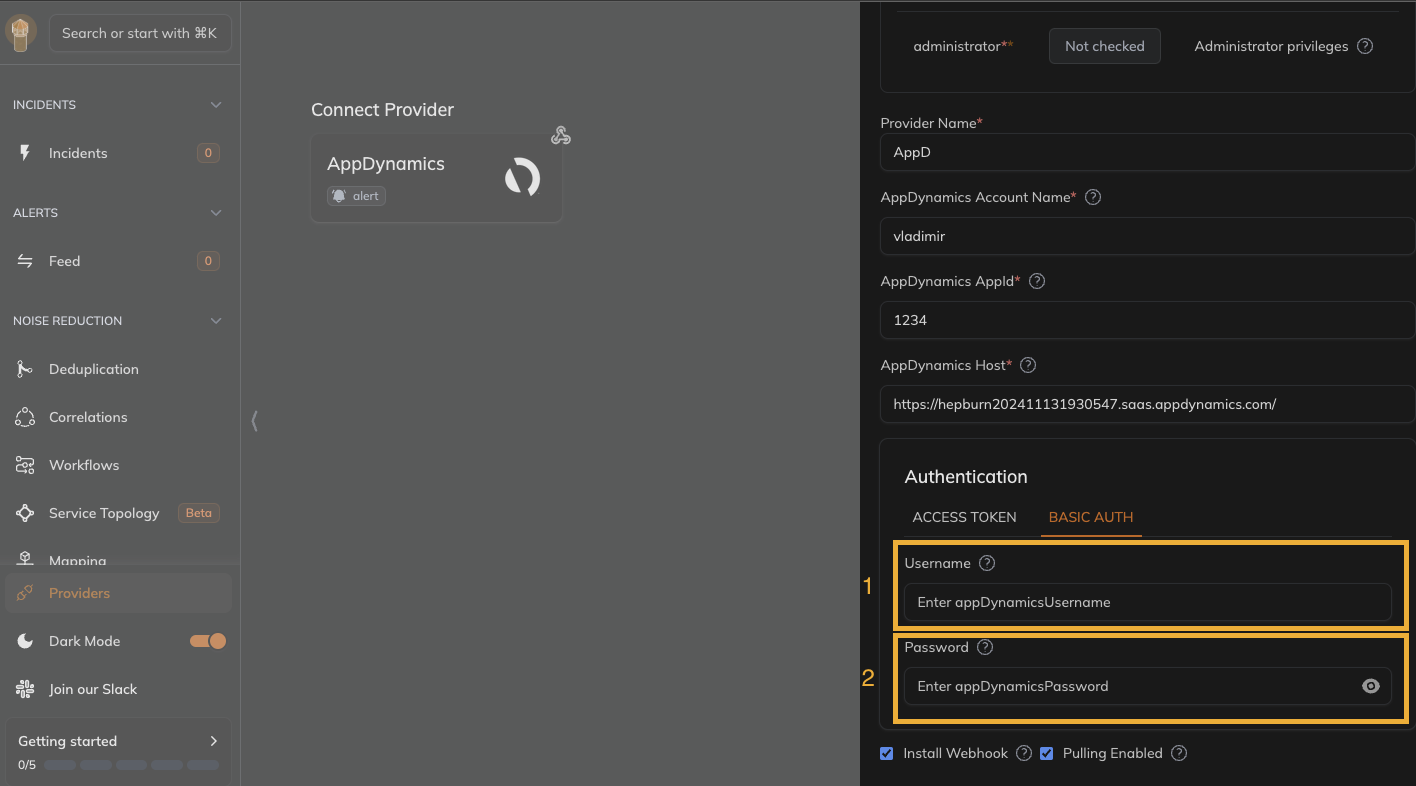
Basic Auth authentication
Obtain AppDynamics Username and Password
Go to Basic Auth tab under Authentication section
Enter Username and Password
Access Token authentication
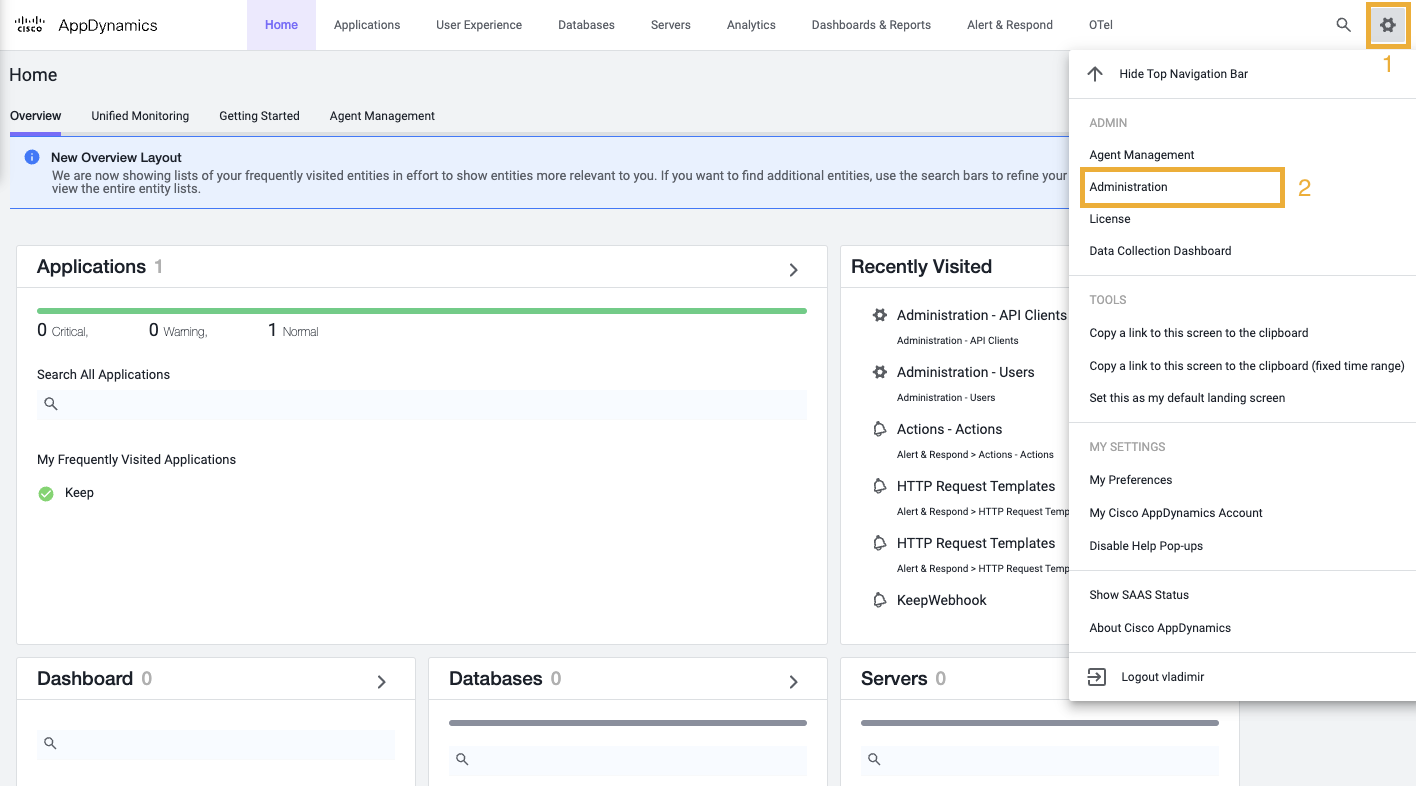
Log in to the Controller UI as an Account Owner or other roles with the Administer users , groups , roles permission.
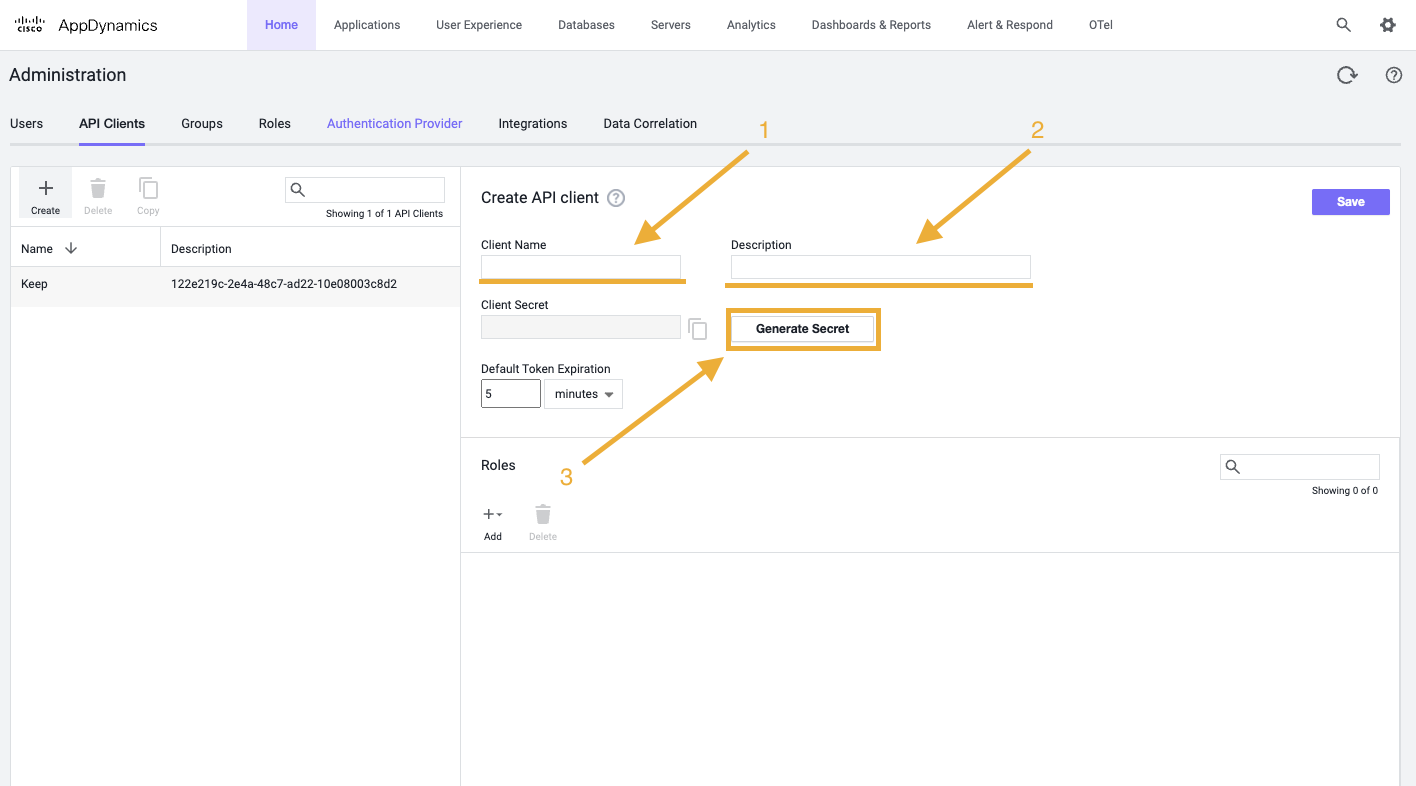
Go to Administration
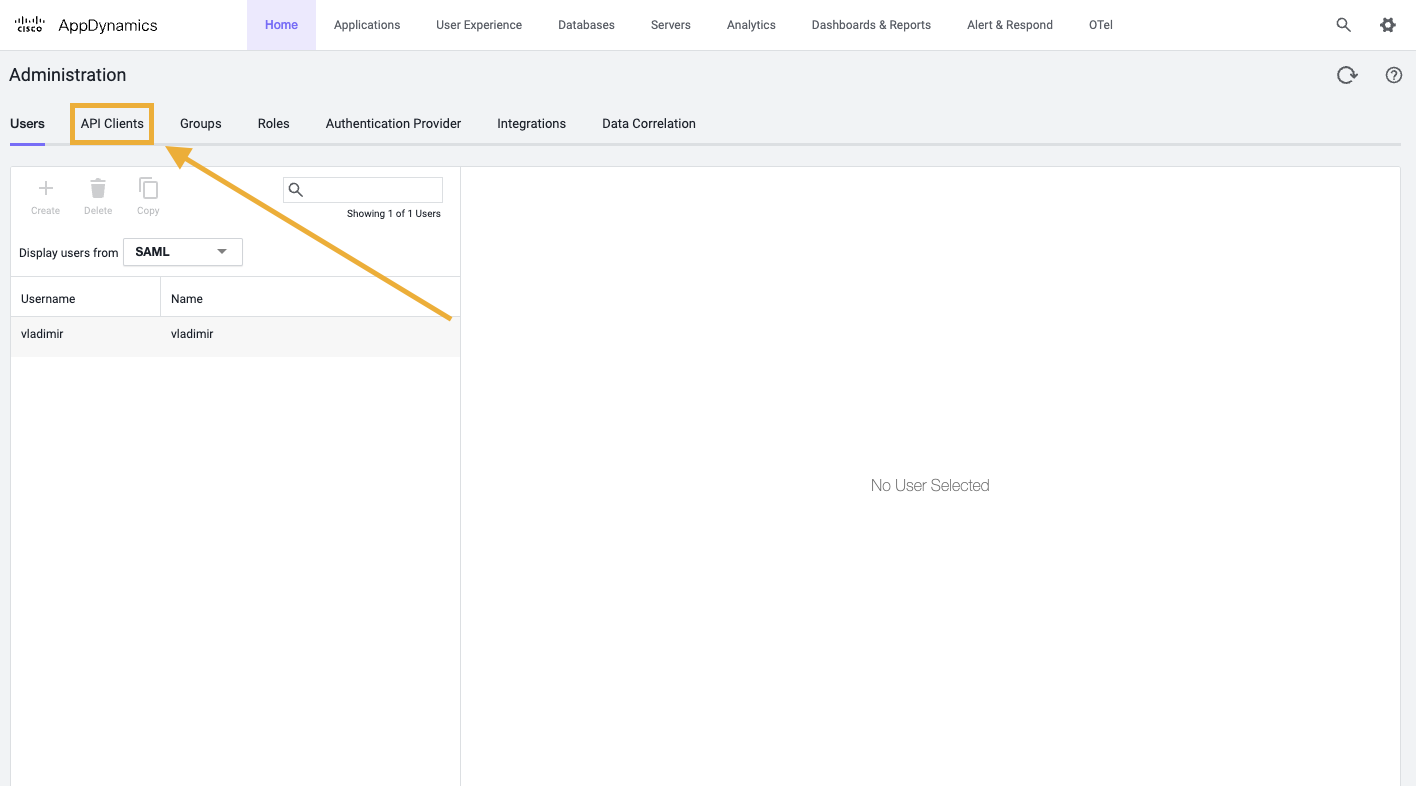
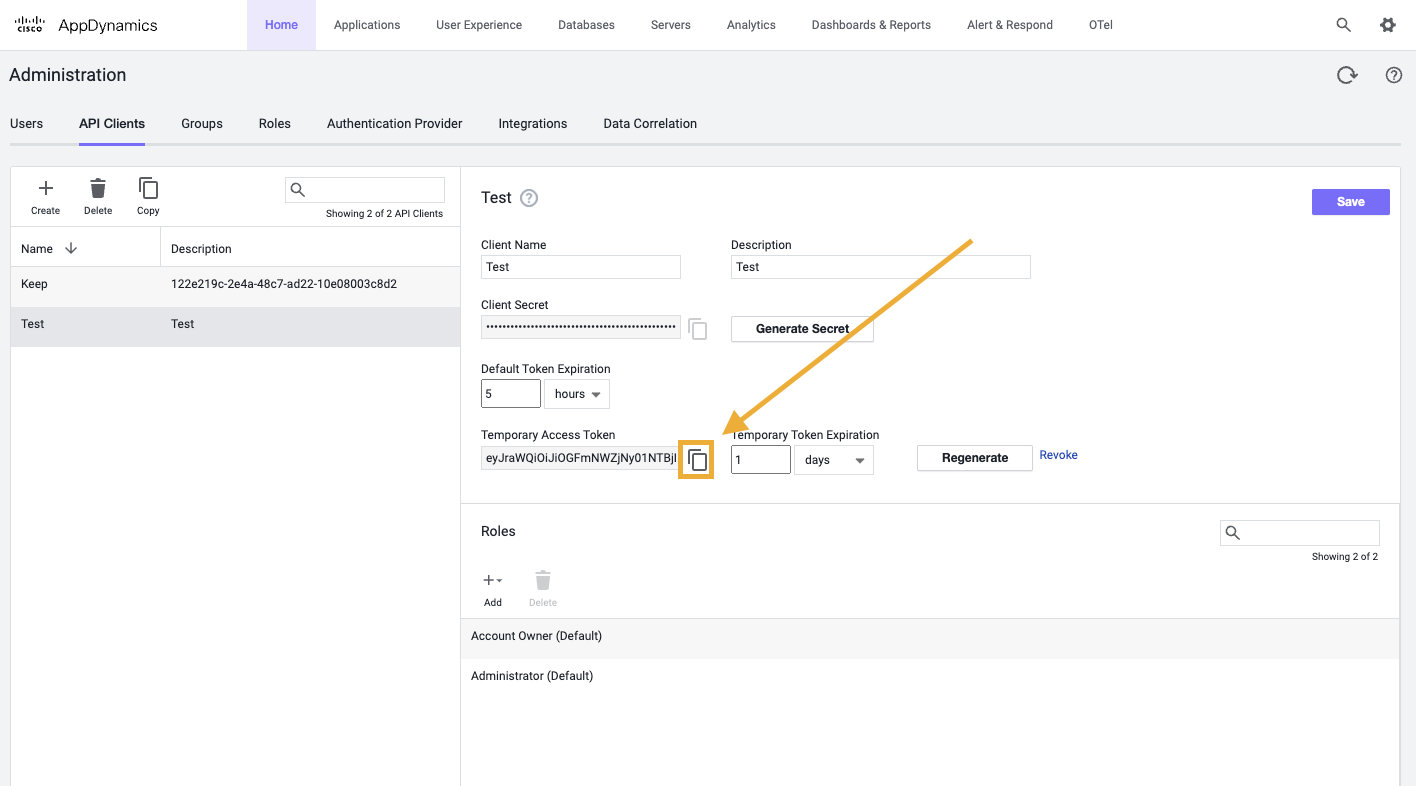
Go to API Client tab
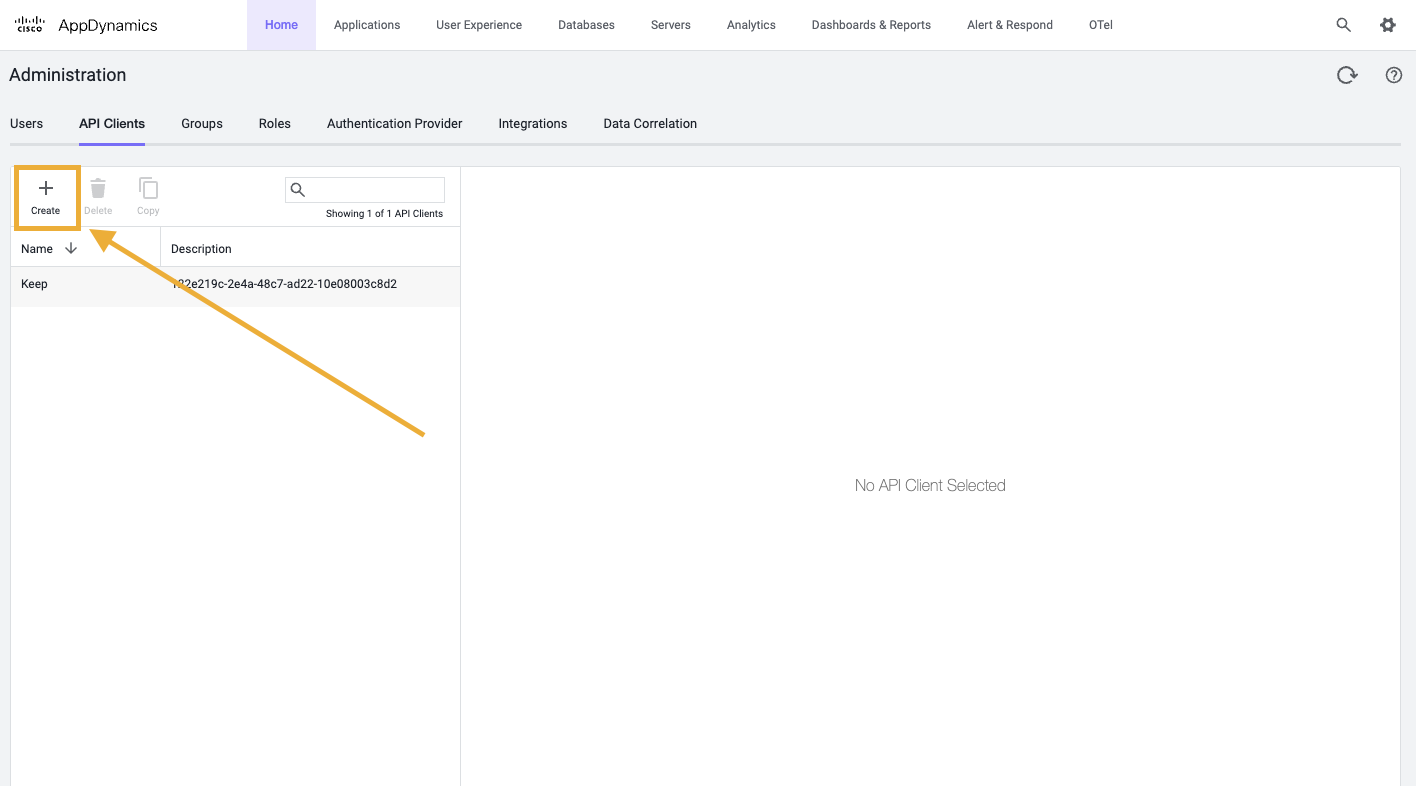
Click + Create
Fill Client Name and Description
Click Generate Secret
This API Client secret is not an authentication token yet
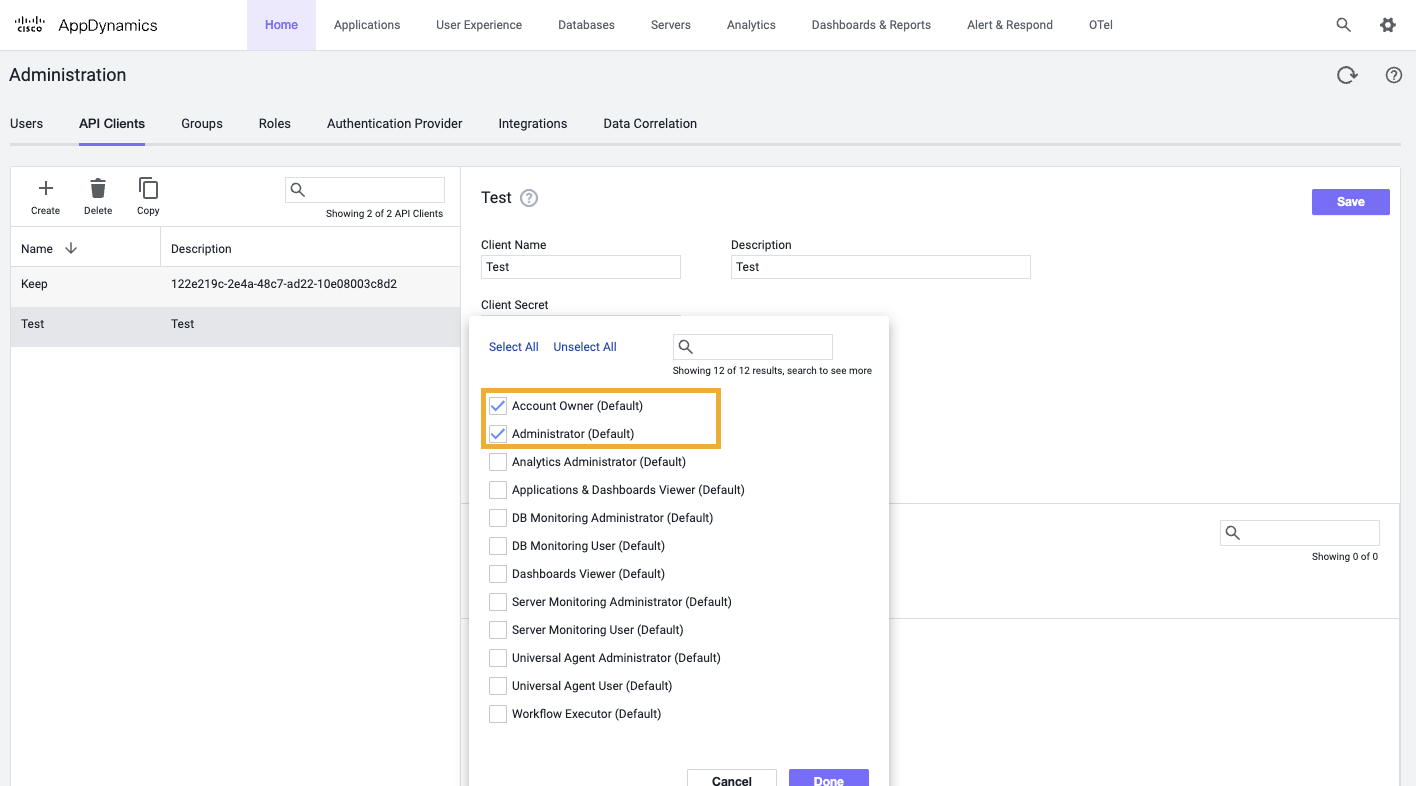
Add Account Owner and/or Administrator roles
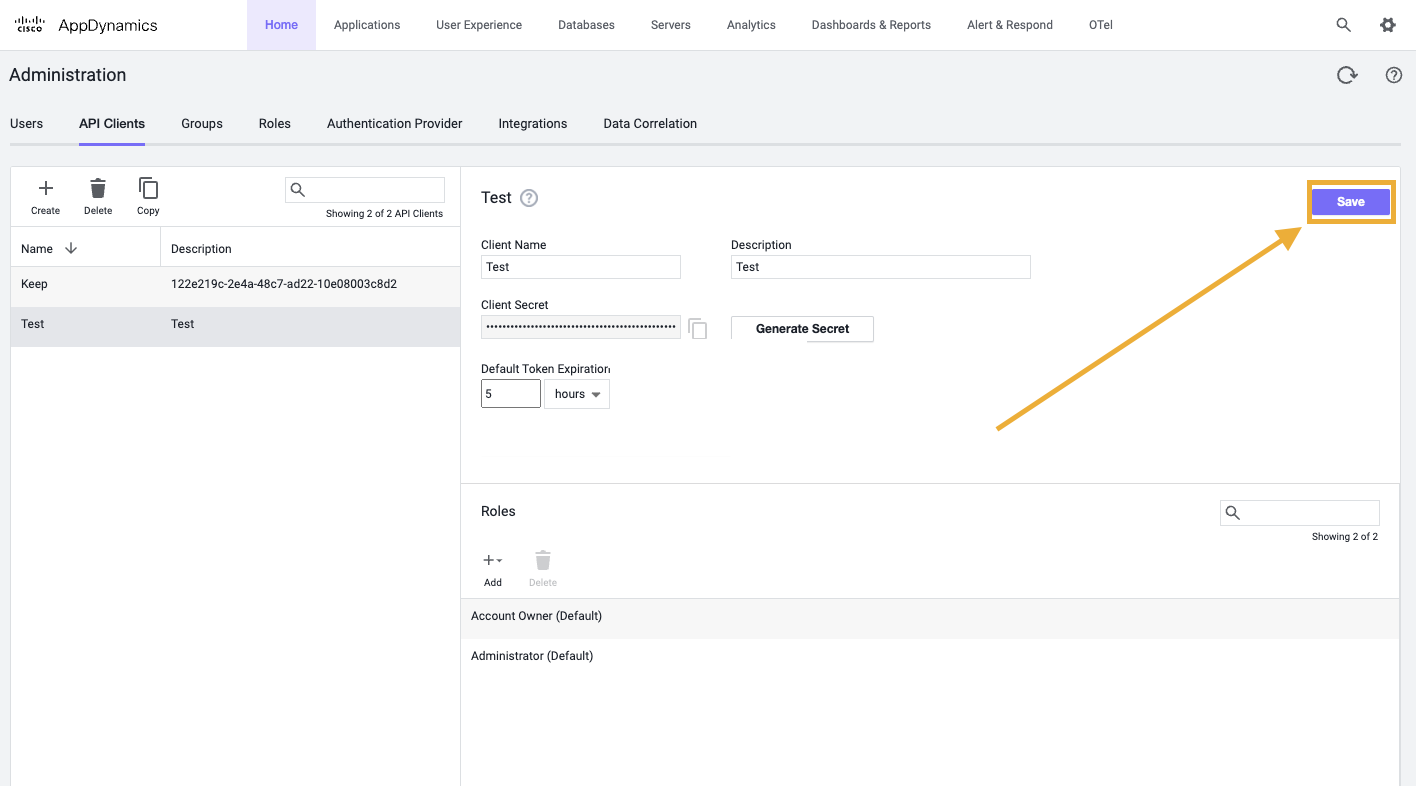
Click Save
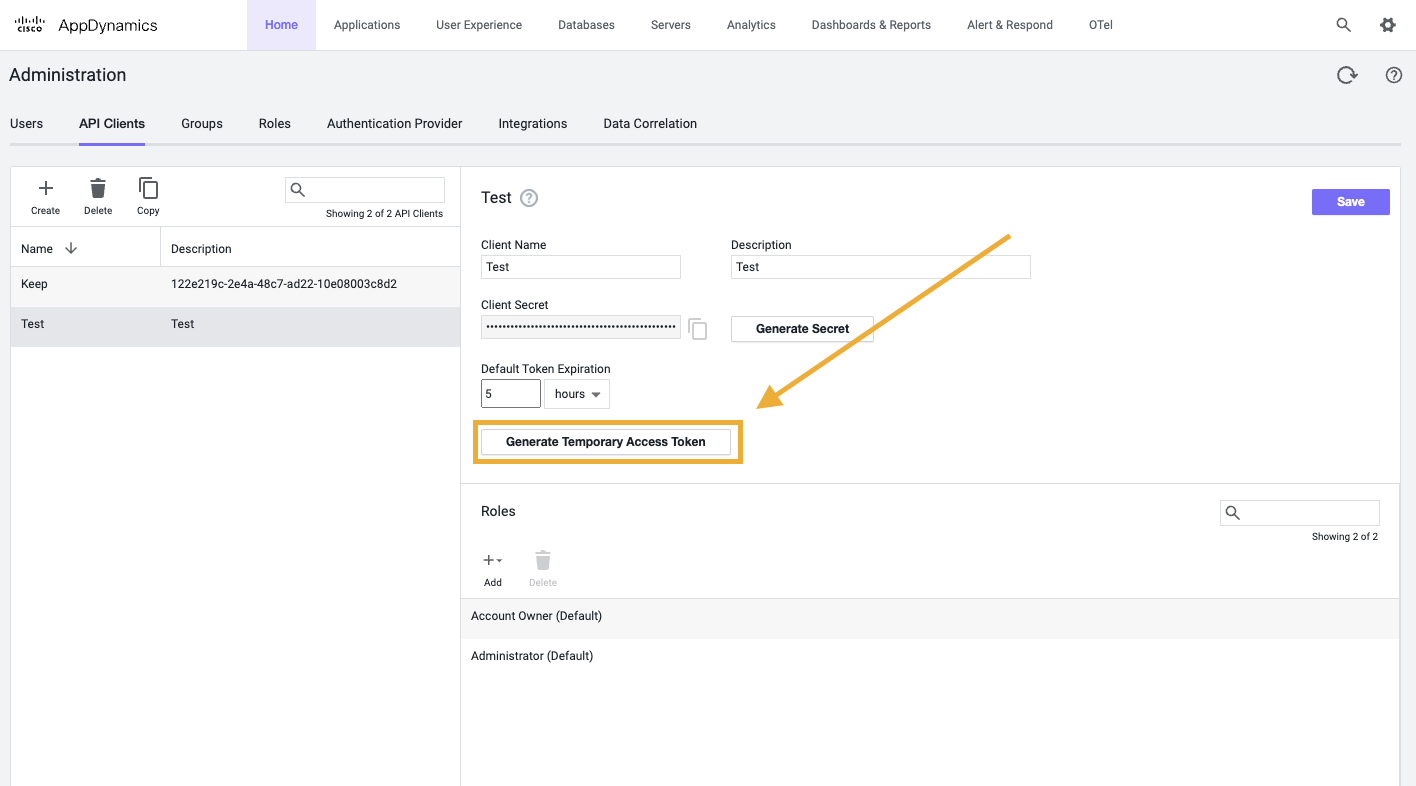
Click Generate Temporary Token
This token is not persistent, but since Keep uses it just once to install Webhook, we will use it without oAuth
Click Save one again
This is important. Otherwise generated token will not be saved and authentication will fail
Copy generated token
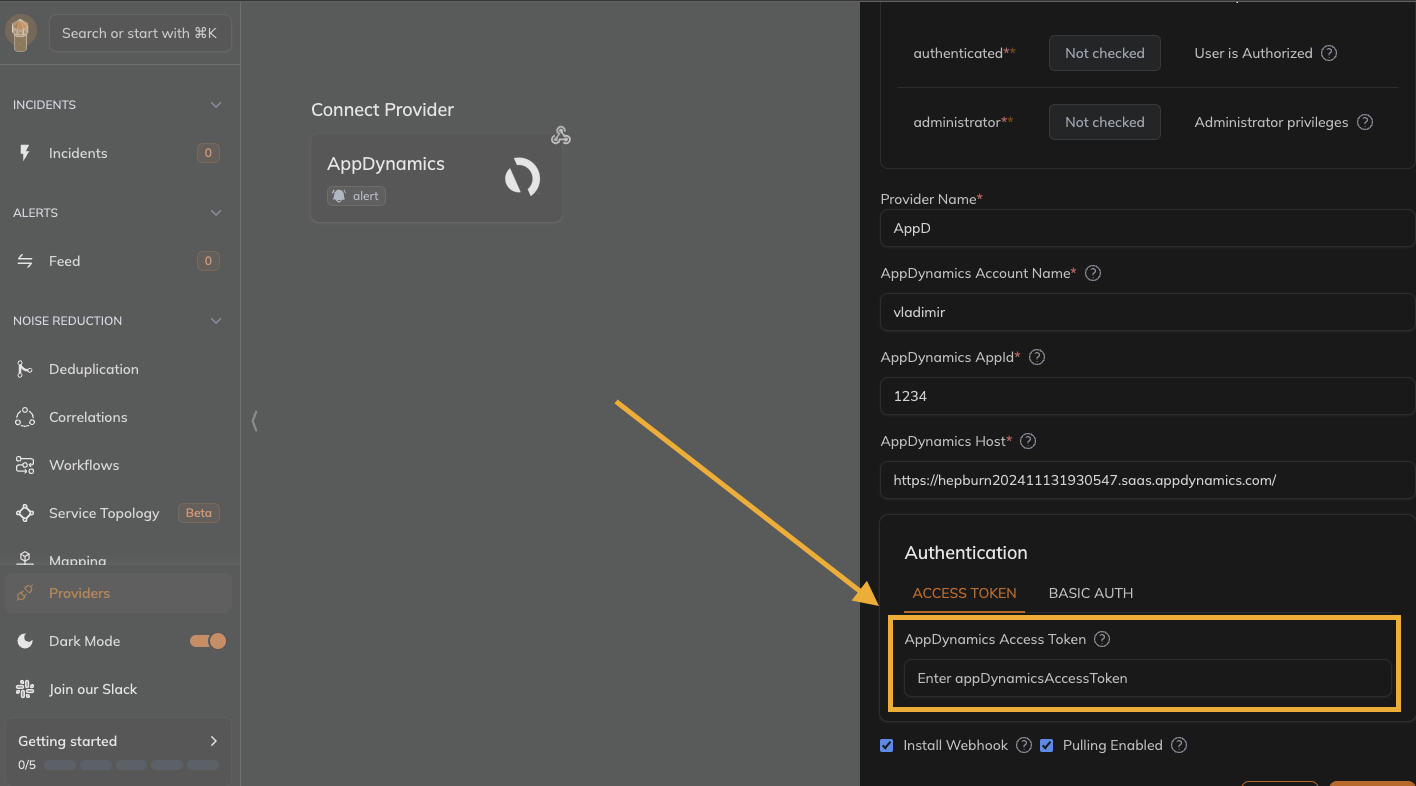
Go to Access Token tab under Authentication section
Enter Access Token
Connecting provider
Ensure Install webhook is checked
Click Connect
Webhook Integration Modifications The webhook integration adds Keep as an alert monitor within the AppDynamics instance. It can be found under the “Alerts & Respond” section.
The integration automatically gains access to the following scopes within AppDynamics:
administratorauthenticated
Useful Links