> ## Documentation Index
> Fetch the complete documentation index at: https://docs.keephq.dev/llms.txt
> Use this file to discover all available pages before exploring further.
# Microsoft Teams Provider
> Microsoft Teams Provider is a provider that allows to notify alerts to Microsoft Teams chats.
## Authentication
This provider requires authentication.
* **webhook\_url**: Teams Webhook Url (required: True, sensitive: True)
## In workflows
This provider can be used in workflows.
As "action" to make changes or update data, example:
```yaml theme={null}
actions:
- name: Query teams
provider: teams
config: "{{ provider.my_provider_name }}"
with:
message: {value} # The message to send
typeCard: {value} # The card type. Can be "MessageCard" (legacy) or "message" (for Adaptive Cards). Default is "message"
themeColor: {value} # Hexadecimal color (only used with MessageCard type)
sections: {value} # For MessageCard: Array of custom information sections. For Adaptive Cards: Array of card elements following the Adaptive Card schema. Can be provided as a JSON string or array.
schema: {value} # Schema URL for Adaptive Cards. Default is "http://adaptivecards.io/schemas/adaptive-card.json"
attachments: {value} # Custom attachments array for Adaptive Cards (overrides default attachment structure). Can be provided as a JSON string or array.
mentions: {value} # List of user mentions to include in the Adaptive Card. Each mention should be a dict with 'id' (user ID, Microsoft Entra Object ID, or UPN) and 'name' (display name) keys.
Example: [{"id": "user-id-123", "name": "John Doe"}, {"id": "john.doe@example.com", "name": "John Doe"}]
```
Check the following workflow examples:
* [create\_jira\_ticket\_upon\_alerts.yml](https://github.com/keephq/keep/blob/main/examples/workflows/create_jira_ticket_upon_alerts.yml)
* [teams-adaptive-card-notifier.yaml](https://github.com/keephq/keep/blob/main/examples/workflows/teams-adaptive-card-notifier.yaml)
* [teams-adaptive-cards-with-mentions.yaml](https://github.com/keephq/keep/blob/main/examples/workflows/teams-adaptive-cards-with-mentions.yaml)
## Connecting with the Provider
> [tab] New Teams
>
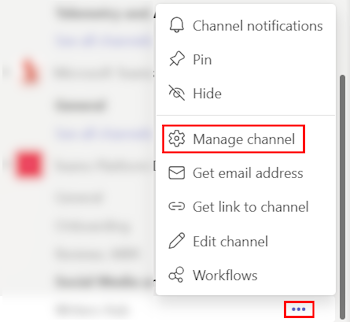
> 1. In the New Teams client, select Teams and navigate to the channel where
> you want to add an Incoming Webhook. 2. Select More options ••• on the right
> side of the channel name. 3. Select Manage Channel
>
> 
>
> > [!NOTE]
> >
> > For members who aren't admins of the channel, the Manage channel option is
> > available under the Open channel details option in the upper-right corner
> > of a channel.
>
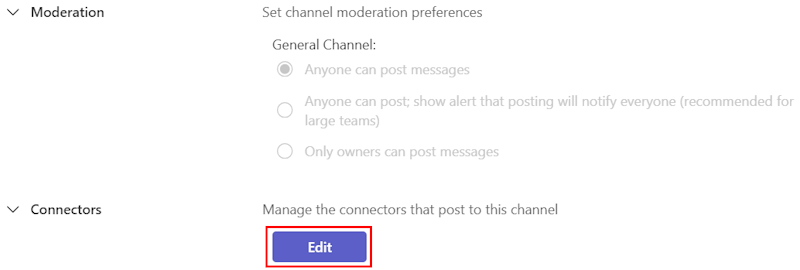
> 4. Select Edit
>
> 
>
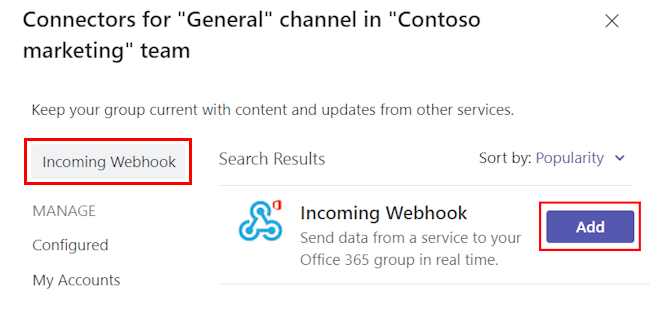
> 5. Search for Incoming Webhook and select Add.
>
> 
>
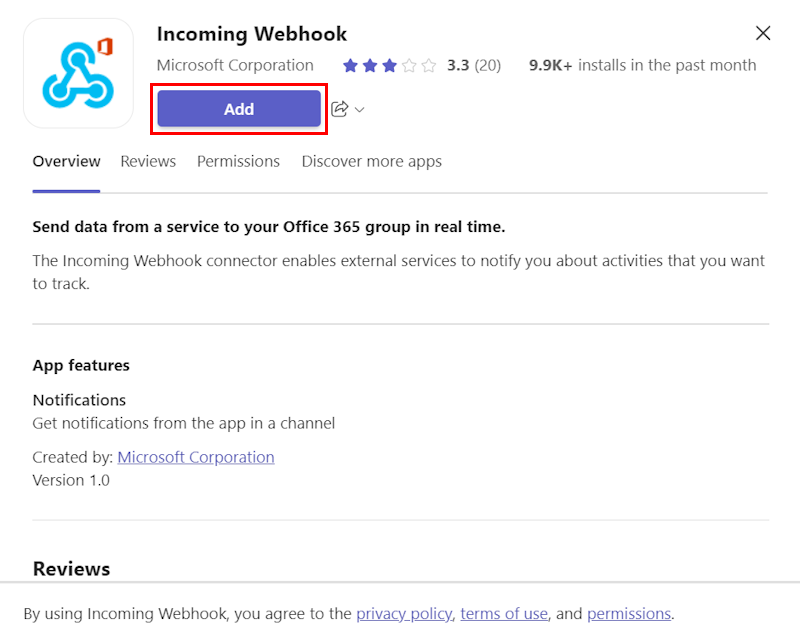
> 6. Select Add
>
> 
>
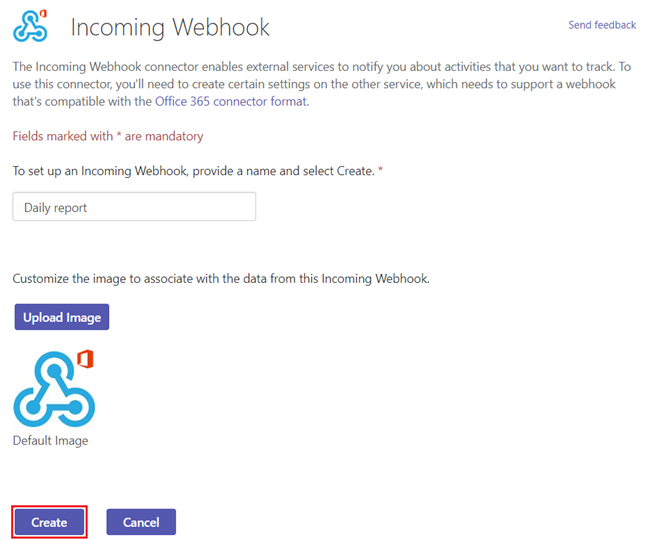
> 7. Provide a name for the webhook and upload an image if necessary. 8. Select
> Create.
>
> 
>
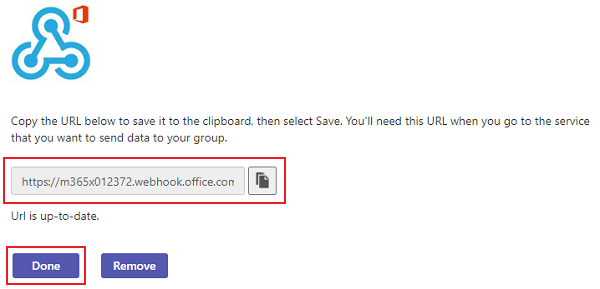
> 9. Copy and save the unique webhook URL present in the dialog. The URL maps to
> the channel and you can use it to send information to Teams. 10. Select Done.
> The webhook is now available in the Teams channel.
>
> 
> [tab] Classic Teams
>
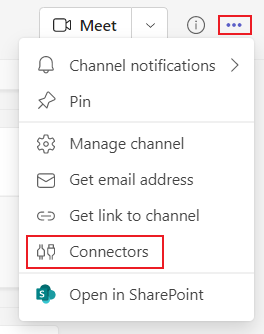
> 1. In the Classic Teams client, select Teams and navigate to the channel
> where you want to add an Incoming Webhook. 2. Select More options ••• from
> the upper-right corner. 3. Select Connectors from the dropdown menu.
>
> 
>
> 4. Search for Incoming Webhook and select Add.
>
> 
>
> 5. Select Add.
>
> 
>
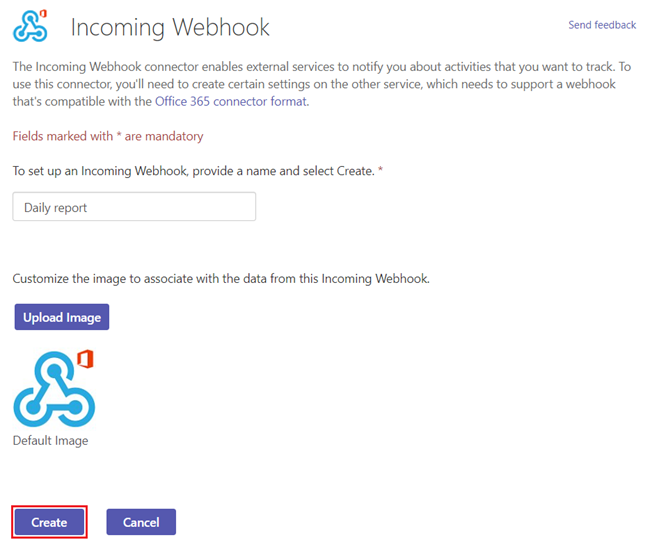
> 6. Provide a name for the webhook and upload an image if necessary. 7.
> Select Create.
>
> 
>
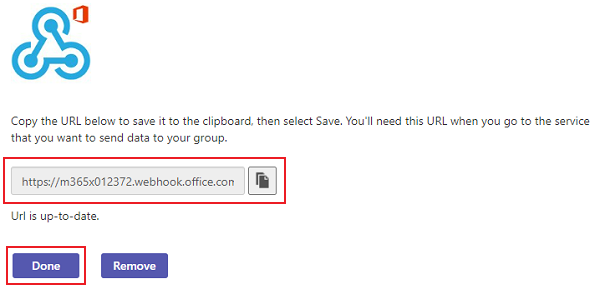
> 8. Copy and save the unique webhook URL present in the dialog. The URL maps
> to the channel and you can use it to send information to Teams. 9. Select
> Done.
>
> 
## Notes
When using Adaptive Cards (`typeCard="message"`):
* The `sections` parameter should follow the [Adaptive Cards schema](https://adaptivecards.io/explorer/)
* `themeColor` is ignored for Adaptive Cards
* If no sections are provided, the message will be displayed as a simple text block
* Both `sections` and `attachments` can be provided as JSON strings or arrays
* You can mention users in your Adaptive Cards using the `mentions` parameter
### Workflow Example
You can also find this example in our [examples](https://github.com/keephq/keep/tree/main/examples/workflows/keep-teams-adaptive-cards.yaml) folder in the Keep GitHub repository.
```yaml theme={null}
id: 6bc7c72e-ab3d-4913-84dd-08b9323195ae
description: Teams Adaptive Cards Example
disabled: false
triggers:
- type: manual
- filters:
- key: source
value: r".*"
type: alert
consts: {}
name: Keep Teams Adaptive Cards
owners: []
services: []
steps: []
actions:
- name: teams-action
provider:
config: "{{ providers.teams }}"
type: teams
with:
message: ""
sections: '[{"type": "TextBlock", "text": "{{alert.name}}"}, {"type": "TextBlock", "text": "Tal from Keep"}]'
typeCard: message
# Optional: Add mentions to notify specific users
# mentions: '[{"id": "user@example.com", "name": "User Name"}]'
```
You can also find an example with user mentions in our [examples](https://github.com/keephq/keep/tree/main/examples/workflows/keep-teams-adaptive-cards-with-mentions.yaml) folder.
> [!NOTE]
>
> The sections parameter is a JSON string that follows the Adaptive Cards schema, but can also be an object.
> If it's a string, it will be parsed as a JSON string.
### Using Sections
```python theme={null}
provider.notify(
message="Fallback text",
typeCard="message",
sections=[
{
"type": "TextBlock",
"text": "Hello from Adaptive Card!"
},
{
"type": "Image",
"url": "https://example.com/image.jpg"
}
]
)
```
### Using Custom Attachments
```python theme={null}
provider.notify(
typeCard="message",
attachments=[{
"contentType": "application/vnd.microsoft.card.adaptive",
"content": {
"type": "AdaptiveCard",
"version": "1.2",
"body": [
{
"type": "TextBlock",
"text": "Custom Attachment Example"
}
]
}
}]
)
```
### Using User Mentions in Adaptive Cards
You can mention users in your Adaptive Cards using the `mentions` parameter. The text in your card should include the mention in the format `User Name`, and you need to provide the user's ID and name in the `mentions` parameter.
Teams supports three types of user IDs for mentions:
* Teams User ID (format: `29:1234...`)
* Microsoft Entra Object ID (format: `49c4641c-ab91-4248-aebb-6a7de286397b`)
* User Principal Name (UPN) (format: `user@example.com`)
```python theme={null}
provider.notify(
typeCard="message",
sections=[
{
"type": "TextBlock",
"text": "Hello John Doe, please review this alert!"
}
],
mentions=[
{
"id": "john.doe@example.com", # Can be UPN, Microsoft Entra Object ID, or Teams User ID
"name": "John Doe"
}
]
)
```
You can also mention multiple users in a single card:
```python theme={null}
provider.notify(
typeCard="message",
sections=[
{
"type": "TextBlock",
"text": "Hello John Doe and Jane Smith, please review this alert!"
}
],
mentions=[
{
"id": "john.doe@example.com",
"name": "John Doe"
},
{
"id": "49c4641c-ab91-4248-aebb-6a7de286397b", # Microsoft Entra Object ID
"name": "Jane Smith"
}
]
)
```
In YAML workflows, you can provide the mentions as a JSON string:
```yaml theme={null}
actions:
- name: teams-action
provider:
config: "{{ providers.teams }}"
type: teams
with:
typeCard: message
sections: '[{"type": "TextBlock", "text": "Hello John Doe, please review this alert!"}]'
mentions: '[{"id": "john.doe@example.com", "name": "John Doe"}]'
```
## Useful Links
* [https://learn.microsoft.com/pt-br/microsoftteams/platform/webhooks-and-connectors/how-to/add-incoming-webhook](https://learn.microsoft.com/pt-br/microsoftteams/platform/webhooks-and-connectors/how-to/add-incoming-webhook)
* [https://learn.microsoft.com/en-us/microsoftteams/platform/webhooks-and-connectors/how-to/connectors-using](https://learn.microsoft.com/en-us/microsoftteams/platform/webhooks-and-connectors/how-to/connectors-using)
* [https://adaptivecards.io/explorer/](https://adaptivecards.io/explorer/)
* [https://adaptivecards.io/schemas/adaptive-card.json](https://adaptivecards.io/schemas/adaptive-card.json)
This documentation is built and hosted on [Mintlify](https://mintlify.com), a developer documentation platform.